1. Connect the charger clamps to the appropriate battery posts.
2. At the Main Menu, tap Warranty Extension. The Auth Code screen is displayed.
3. Connect the Tester Pod test clamps to the battery (Red to positive [+], Black to negative [–]).
4. Remove the Controller from the Tester Pod.
5. On the Controller at the Main Menu, tap Warranty Extension.
Graphics of the three steps required to perform the test are displayed followed by the Acquire Auth Code screen.
6. Use the on-screen keypad to manually type the 10-digit Auth Code and tap OK.
The digital counter will count up the alphanumeric characters as they are entered on the keypad.
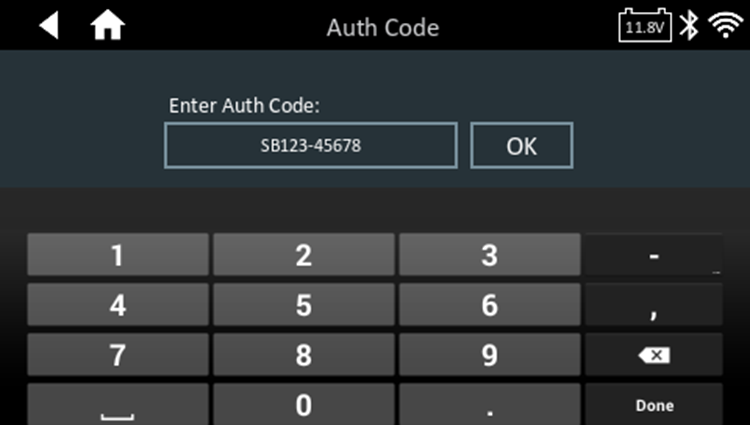
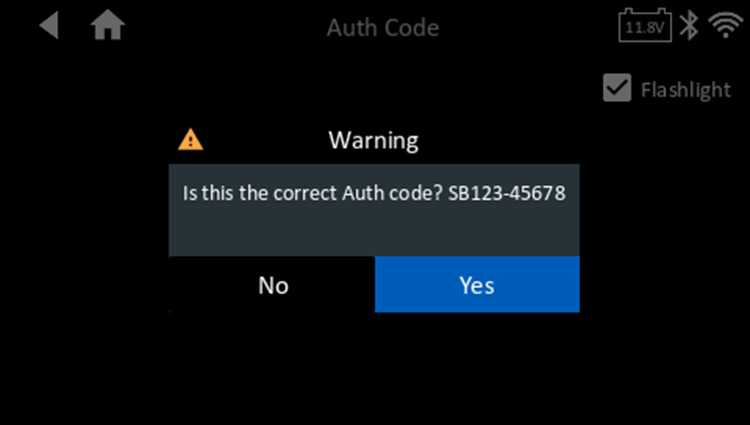
7. If the displayed Auth code is correct, tap Yes to proceed with verifying the auth code and proceed to entering the VIN.
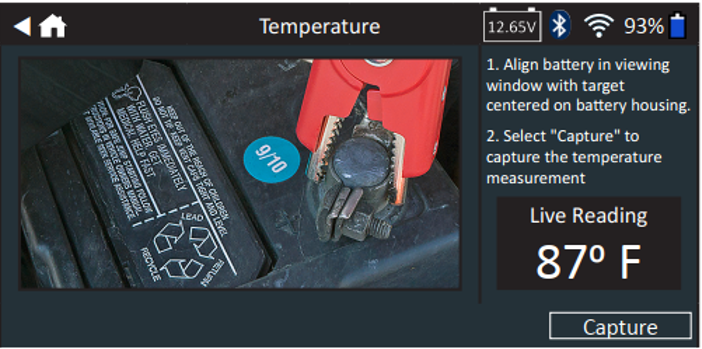
Once the auth code is authenticated the Temperature screen is displayed.
Note: If the test for an auth code has already been used, then wait the allotted time before re-entering the code or press Home
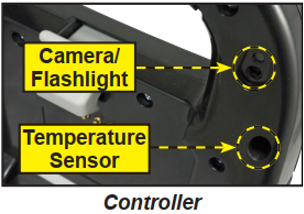
8. Align the temperature sensor on the Controller over the battery and tap Capture. The test begins when the temperature is successfully captured.
9. Use the camera built into the back of the Controller handle to scan the VIN bar code.
NOTE: To provide additional light in low-light situations, tap the icon to turn on the built-in flashlight.
For best results, use the barcode located on the driver’s side door frame. For manual entry, the VIN is also displayed behind the windshield on the driver’s side dashboard.
NOTE: Refer to Appendix B on Pg. 30 for recommended scanning procedures and VIN scanning help.
The Edit Battery Information screen displays vehicle information based on the VIN associated with the authorization code.
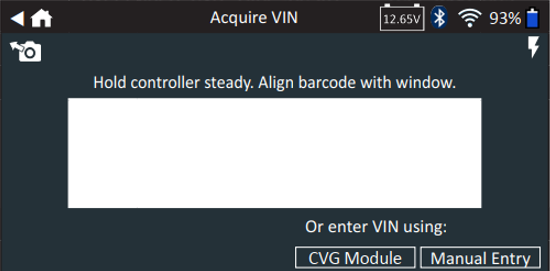
10. Tap Manual Entry to enterVIN manually.Use the on-screen keypad to manually type the 17-digit VIN and tap.
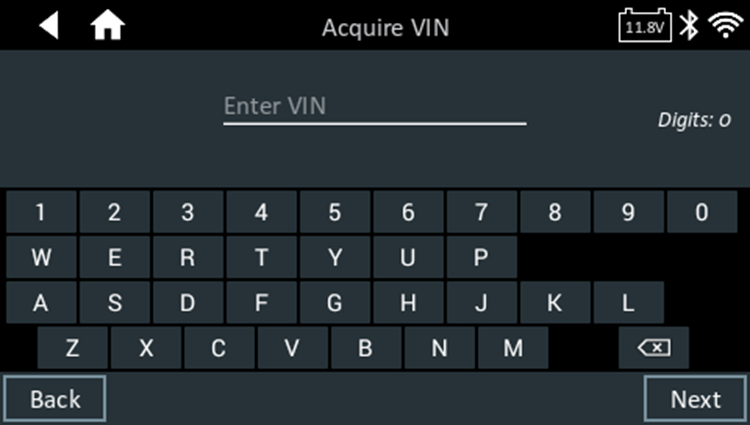
The displayed digital counter will count the alphanumeric characters as they are entered on the keypad.
Depending on the VIN, the Edit Battery Information screen displays vehicle and battery information based on the VIN.
11. If the Replacement Battery Selection screen is displayed, tap the battery chemistry information for the replacement battery before moving on to the Edit Battery Information screen. The Replacement Battery Selection screen displays battery options.
If the battery option is not listed, tap None of the above.
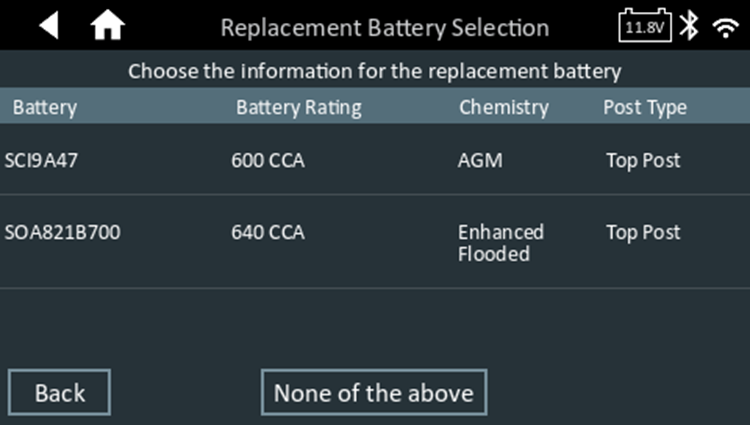
12. At the Edit Battery Info screen, the battery info fields cannot be edited for scanned transfer auth code. Tap continue to begin the Battery Test

For manually entered auth codes, the Edit Battery Info can be edited. Tap the box across from each displayed parameter and select the correct information from the displayed list.
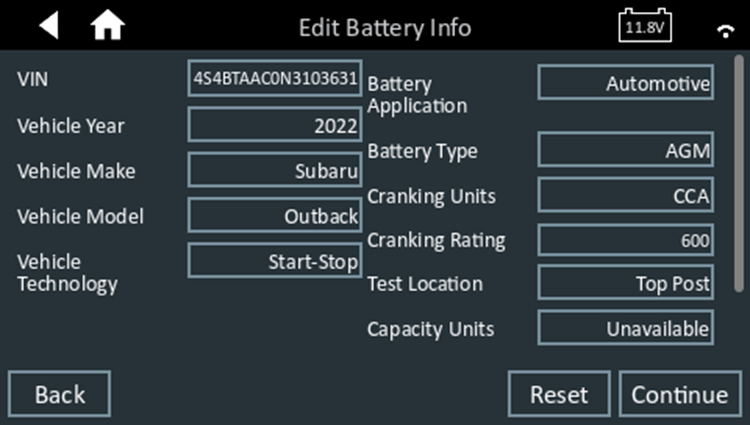
13. Verify the displayed information is correct. If yes, tap Continue to begin the Battery Test. If no, tap Reset to reset the parameters to the factory defaults or tap each battery.
NOTE: For new, previously untested VIN, confirm and manually enter the CCA.
The entered value will be matched to the VIN and used for future testing. Always confirm battery CCA in case the battery was changed between battery tests.
NOTE: See Appendix B on pg. 46 for complete parameter descriptions.
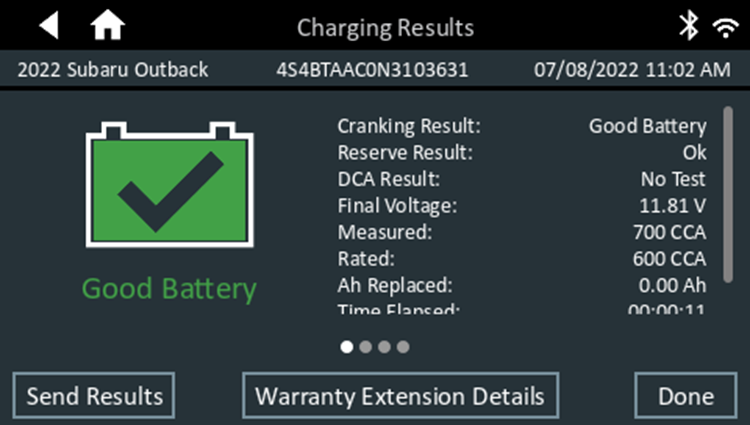
The charger performs a series of tests to determine the overall condition of the battery before applying a charge. Those steps include: measuring the ambient battery temperature, Cranking Health, Reserve Capacity, Charge Acceptance, and applying a Load Test to the battery. The test results are then displayed on the charger screen as follows: